
Table of Contents
Think about it—sitting down and losing yourself in your favorite music or movie, becoming so truly absorbed that you’re feeling every note, beat, pause, and silence. The secret? Turning onto windows audio eq. No matter if you are a passive listener or an enthusiast, the tips we’re about to share on how to improve sound quality can make everyday sounds sound like music in your ears. By making just a few simple tweaks and adjustments, you can improve the richness of your sound and deliver clearer vocals to kick your listening experience up a gear. So, let’s plunge into the world of Windows Audio EQ settings and sound like never before on your windows audio eq.
Understanding windows audio eq
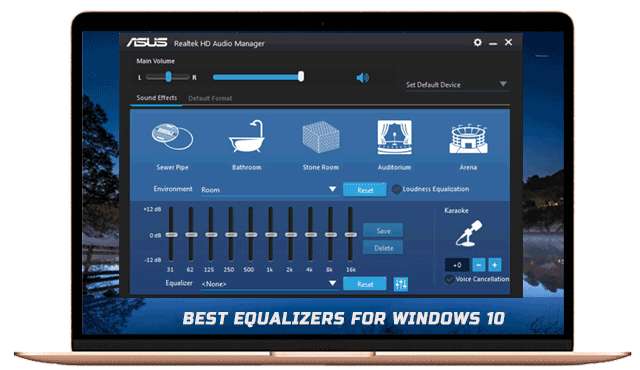
Windows EQ (audio equalization) is a powerful process to improve the audio quality. It provides users with an observation of the balance of sound frequencies playback from their devices. So you can increase bass for a fuller sound or treble to make vocals clearer.
Fundamentally, windows audio eq breaks down the frequency of the audio content into several different bands. That’s because every band represents a range of frequencies that our sense of sound is affected by. You tweak the bands and create your perfect sound signature to suit what you’re listening to or how you want it to sound.
Knowing the impact that each tweak has on the final output is powerful. You could fine-tune your music, games, and movies to perfection with it. Whether you’re a sound professional or an enthusiast, this audio equalizer will help you gain the upper hand on your competition. But with some simple configuration, what was once just ambient now provides an enveloping soundscape filled with detail and distinction.
How to Access Windows Audio EQ Settings
Finding the Windows audio equalizer is certainly a simple task. Begin by right-clicking on the speaker icon in your taskbar. This will open a menu in which you can choose “Sounds.” Once inside the Sound window, find the Playback tab. So here, look for your active audio device—you’ll generally see one labeled as “Speakers” or “Headphones.” Right-click on it and select “Properties.”
In the window for your device, look in its “Properties” section, and there should be an option called “Enhancements.” Click this tab, and you’ll find a bunch of options related to audio enhancement.
Here, an optional setting is listed that “should” appear if your version of Windows has the equalizer option. Just turn it on, and begin dialing frequencies to your heart’s content. And remember to click apply on whatever you change when you exit, so that the changes are active right away. Discover your own sound with customized profiles designed for you.
The Benefits of Using an windows audio eq
An audio EQ can change the way your music sounds. It’ll let you customize the sound levels to fit your tastes and what content you’re listening to. With an windows audio eq, you can increase the bass for that heavy thump in music or heighten the treble for clearer vocals. This personalization results in fuller, more enjoyable soundscapes.
Also, the environment makes a difference in how you’ll experience audio. An EQ makes up for these differences in performance and produces the best sound quality, whether at home or on-the-go. Improved audio clarity is one more benefit. With fine-tuning, the sound of programming in movies is crisper, and background movement is integrated.
For gamers, EQs can give you a competitive edge by making subtle sounds more prominent — like footsteps or faraway gunfire — so players can act faster and play smarter. This isn’t limited to boosting music, either; podcasts and audiobooks become clearer and easier to follow (and more enjoyable as a result), too.
Troubleshooting Common Issues with Windows Audio EQ
There are times when you may run into Windows audio equalizer not working, and it can be a real headache. One of the well-known problems arises when you configure the equalizer, and it does not take effect or work as expected. Sometimes you can fix that by simply restarting your media player or even your computer.
Another common problem that can occur is the degeneration of sound due to EQ settings. If you experience this, reset the equalizer to the basic values and finally make the settings. It’s important not to push your frequencies too high, or you’ll get unwanted noise.
Also, ensure you have the latest audio drivers. Your drivers may be just outdated, which could lead to all sorts of playback issues, as well as problems with audio enhancements.
If you are still having issues, try looking into any conflicting software that could be causing issues with the EQ feature. And sometimes, third-party apps can even ignore the settings of the system and do as they please.
Conclusion: Enhance Your Listening Experience with Windows Audio EQ
It’s easier than ever to make the most of your audio on Windows with the right tools. Windows audio eq. Immerse in the game with the Redragon H711 DITI wired 7.1 gaming headset, and you will feel convenient and comfortable during your playing sessions. Once you know how to work with these settings, you can build a type of listening environment that fits any given genre or feeling.
With advantages like enhanced clarity and a more balanced sound, it’s possible to turn average listening sessions into ones that are extraordinary by using the Windows audio EQ. On the upside, solving these same problems will get you up and running problem-free in no time.
In seeking to experience the Windows audio eq you can never go wrong as you discover what it’s made of. Whether you’re gaming, streaming movies, or listening to your favorite speech or podcast, optimizing your sound is just a click away from every corner of your screen. Seize your audio settings today and start exploring the sonic possibilities!