
Table of Contents
Introduction to where are chrome bookmarks stored
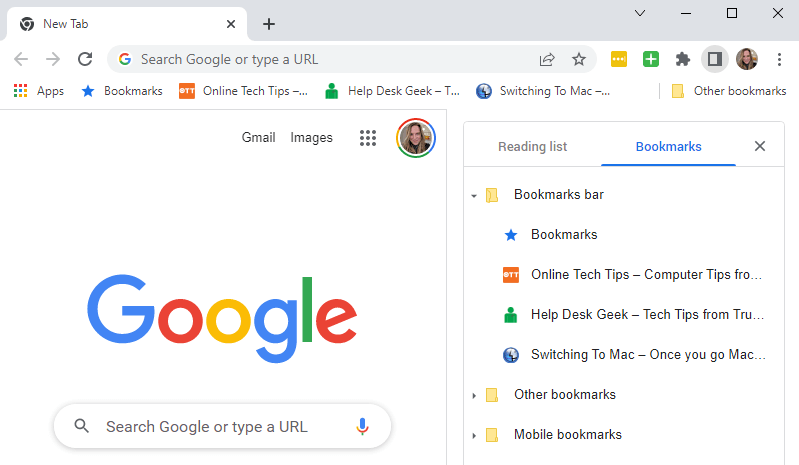
Where are chrome bookmarks stored: How many times have you saved a useful Chrome bookmark and then wondered where it actually goes? You’re not alone. With users creating hundreds of bookmarks and never actually knowing where they’re stored. It may be useful to know where Chrome keeps its bookmarks in case you want to make a backup of your bookmarks, move them to another computer, or perform some other sort of troubleshooting. Whether you’re tech-savvy or just love making life simpler, this knowledge is helpful for everyone. Today, we are going to take a deep dive into your browser and reveal the secrets of where Chrome saves these treasures that make our online life even better!
Understanding the Importance of where are chrome bookmarks stored
Understanding where Chrome bookmarks are stored can help with your browsing experience. With quick access to your favorite sites, browsing often becomes a task instead of an inspiration.
Bookmarks serve as digital signposts. They take you back to helpful resources without requiring that you search for them all over again. Knowing where they’re stored means you can take control — back up valuable links or transfer them so they’re available across devices.
Also, knowing about how bookmarks are stored is good if you ever have problems. When bookmarks vanish or don’t sync as expected, you’ll be glad to know where they’re stored and easily restore lost data. Bookmarks are special to many people; they’re a collection of knowledge and inspiration. They are key to staying organized online and getting the most out of your time.
Default Location of where are chrome bookmarks stored on Windows
In order to find your Chrome bookmarks from a Windows machine, it’s helpful to know the position where they’re located on disk. These bookmarks are stored in the user’s profile folder by default.
Open File Explorer and navigate to the following path: C:\Users\\AppData\Local\Google\Chrome\User Data\Default
Here will be a file titled ”Bookmarks.” This is the file that stores all of your saved links. From inside your Chrome user data directory, if you are using multiple profiles in chrome each profile places its own folder inside the “User Data” directory folder. And above, everywhere you see “Default”, just replace it with your actual profile name and voila! You have access to that bookmark file.
Keep in mind that “AppData” may be hidden by default. To bring it back into view, change your settings in File Explorer or hit “Alt” and then choose “Tools” and then “Folder options.”
Troubleshooting Common Issues with where are chrome bookmarks stored
And occasionally, you won’t see your bookmarks where you expect to. There are many reasons for this. To start, just make sure you are looking in the right directory. By default, the Location will be something under your user profile, but it may differ depending on system settings or Chrome installs.
If you’ve just updated Chrome, the bookmarks may be hiding in a removal that could prevent the browser bookmark sync issue. There are times when syncing problems can cause bookmarks to be temporarily missing. Corrupted files, too, can provide issues. If not, then you could restore from a backup if there is one available that you had taken previously.
Unintentional deletion is another problem we face in everyday life. If that happens, consider browsing through the ‘Bookmarks Manager’ to more easily restore them before they end up disappearing forever. Clearing cache and cookies can help to improve performance, but should be taken cautiously in order not to lose important or useful data.
Conclusion: Choose the Best Storage where are chrome bookmarks stored
Where are chrome bookmarks stored: If you would like to have better control over the location of your Chrome bookmarks, keep scrolling! Knowing the default directory on Windows enables you to back up or migrate your bookmarks with ease.
These bookmarks are stored in the User Data directory under an AppData folder, so they’re relatively convenient to modify or retrieve if necessary. If having trouble finding it, this path is one you want to memorize.
Additionally, identifying and resolving common issues with bookmarks storing can prevent time loss and irritation. If your browser crashes or bookmarks are missing after an update, having awareness of how these tools store their data can save time by troubleshooting issues with quick potential fixes.
Knowledge of the location where chrome bookmarks are stored helps manage your online resources in a better fashion, and you won’t lose an important link. Use this knowledge as an ally to better surf the digital world.
FAQs:
Where are Chrome bookmarks stored on my computer?
Chrome bookmarks are stored in a local file inside your user profile folder.
Where are Chrome bookmarks stored in Windows 10 or 11?
Where are Chrome bookmarks stored on Windows? They are saved in the AppData > Chrome > User Data folder.
Where are Chrome bookmarks stored on macOS?
Where are Chrome bookmarks stored on Mac? They are located in the Library > Application Support > Google > Chrome folder.
Where are Chrome bookmarks stored in a single file?
Where are Chrome bookmarks stored as a file? They are saved in a file named Bookmarks without any extension.
Where are Chrome bookmarks stored if I use multiple profiles?
Where are Chrome bookmarks stored with profiles? Each profile has its own separate bookmarks file.